Now that a majority of people are using digital cameras rather than film cameras we are seeing the cameras come out a lot more. And the cameras are not just being used more (because it is basically free to shoot photos now) but people are also taking a lot more photos. Now you can shoot and shoot and shoot and in the abundance of photos hope you get a good one of Grandma and the grandkids (or that award winning look you always thought you could do).
Well in the process of shooting so many photos you are also ending up with a problem. How to find that photo you took 9 months ago at Bob's birthday party. You have seen it I am sure.... all the photos are named something like DSC101327.jpg or some other weird name. And there is no way to find it by filename then. So now you are wading through hundreds if not thousands of those tiny thumbnails. Talk about an impossible task! Oh there is also the problem that if you just dump them all in the same folder then the computer starts having a hard time even organizing them if you sort by file date or to display all the thumbnails.
So what is the solution to this? Well the best way I have found to handle it is to get organized when you unload the photos from the camera. There are several ways to do this but over time here is what I have come up with. Under the folder I store all my photos I have created sub folders named the particular year, 2006, 2007, 2008, 2009, and so forth. Then when I pull the photos off the camera I will put them in folders below that with the format YYYY-MM-DD subject name for the folder. So like my daughters birthday on the 13th of January went in the 2009 folder in a subfolder called 2009-1-13 Shoshannas birthday this year. The other thing I do then is to have the software I pull the photos off the camera rename the photos with the same format as the subfolder and then just add -001 on up to the photos. I still will have to look through the thumbnails... but now I know right where the proper group is and only have maybe 50 to 100 or a little more to go through and not thousands.
So give it a try the next time you unload your camera onto your computer. A lot of the software that does the transfer will make easy work of this. I use Photoshop Elements and it does a great job. The standard Windows software for transfering from camera does a good job too. If the program you use to transfer the pictures from your camera does not enable you to rename them as they come across then look for alternatives. Next post I will also tell you about a really cool utility I found for doing mass updates to file names and such.
Monday, January 26, 2009


Tuesday, January 20, 2009
Safe web browsing.. or protecting from malware
I have had a lot of times where people want me to help them with a totally messed up computer. You know, the computer that is atrociously slow because of pop-ups and other junk that is messing it totally up. The biggest common denominator of all of these people is they all were on Windows AND used Internet Explorer (IE). There is a bit of history in the security problems with IE. It started with Active X and has gone downhill since.
Now I am not going to bore you with all the technical details of the problems with IE. Suffice it to say they are there. If you use IE for all your web browsing you WILL have problems. Just count on it.
Now one of the good solutions is to move to using a Mac instead of Windows. Now for you Linux geeks, yes that would work too. But my position is that Linux is not ready for the average household. So put your flamethrowers away. I will not even listen (La la la la I am not listening to the Linux pontifications). The Mac has a whole ton of benefits. I very well might expound on those one of these days. But for the point of this argument, yes you will get rid of malware problems.
Of course most of you will not want to move from Windows. There is another fix however. The answer is don't use IE. There are several really good alternatives that will keep you away (for the most part) from the crushing problems of malware. I and my household have used these for years and we have almost no problems with malware. I cannot recall ever having a friend contact me to help with a dorked up machine where they use something other than IE all the time. So here are your options.
Firefox- this one has been around for a really long time. I love it and it is the one I use almost all the time. There are some awesome add ons you can get for it too. It is free and avalable from www.firefox.com for download.
Safari - this is a Windows port of the Apple Mac browser. Initially it had some problems, but it is maturing nicely. It is really fast and is very slick looking (it is from Apple after all). It is available from the Apple website.
Chrome - this one is written by people at Google. It is suppose to be the fastest, most stable, and safest of the options. It has some real holes at first, but these have been fixed for the most part. Chrome is the most spartan of the browsers. It takes a bit of getting used to.
Now here is the deal. You might find a website that will not work on anything other than IE. It does not happen to often, but there are a handful of sites this is true of. You have two options. First, just don't use the site. Send the people a message that you decided to shop elsewhere or whatever. The second is to use IE for just that site. Personally I vote for the site almost every time. And if enough people let these sites know then the programmers will stop using those program calls that only work in IE.
This brings up one final point that goes well with a rant against IE. A lot of programmers I know that write exclusively for IE say that they really don't care because IE is the majority browser and growing. Well the funny thing is that the trend is changing. The number of people using IE has started to drop significantly. There are a lot of reasons, including wonderfully that the Mac population is growing very large. The point is that as of December 2008 the percentage of people using IE has dropped to 68% and is still falling. So as more and more people use non-IE solutions then the web developers will be forced to start writing web sites that are industry standards compliant. Take that Microsoft!
Now I am not going to bore you with all the technical details of the problems with IE. Suffice it to say they are there. If you use IE for all your web browsing you WILL have problems. Just count on it.
Now one of the good solutions is to move to using a Mac instead of Windows. Now for you Linux geeks, yes that would work too. But my position is that Linux is not ready for the average household. So put your flamethrowers away. I will not even listen (La la la la I am not listening to the Linux pontifications). The Mac has a whole ton of benefits. I very well might expound on those one of these days. But for the point of this argument, yes you will get rid of malware problems.
Of course most of you will not want to move from Windows. There is another fix however. The answer is don't use IE. There are several really good alternatives that will keep you away (for the most part) from the crushing problems of malware. I and my household have used these for years and we have almost no problems with malware. I cannot recall ever having a friend contact me to help with a dorked up machine where they use something other than IE all the time. So here are your options.
Firefox- this one has been around for a really long time. I love it and it is the one I use almost all the time. There are some awesome add ons you can get for it too. It is free and avalable from www.firefox.com for download.
Safari - this is a Windows port of the Apple Mac browser. Initially it had some problems, but it is maturing nicely. It is really fast and is very slick looking (it is from Apple after all). It is available from the Apple website.
Chrome - this one is written by people at Google. It is suppose to be the fastest, most stable, and safest of the options. It has some real holes at first, but these have been fixed for the most part. Chrome is the most spartan of the browsers. It takes a bit of getting used to.
Now here is the deal. You might find a website that will not work on anything other than IE. It does not happen to often, but there are a handful of sites this is true of. You have two options. First, just don't use the site. Send the people a message that you decided to shop elsewhere or whatever. The second is to use IE for just that site. Personally I vote for the site almost every time. And if enough people let these sites know then the programmers will stop using those program calls that only work in IE.
This brings up one final point that goes well with a rant against IE. A lot of programmers I know that write exclusively for IE say that they really don't care because IE is the majority browser and growing. Well the funny thing is that the trend is changing. The number of people using IE has started to drop significantly. There are a lot of reasons, including wonderfully that the Mac population is growing very large. The point is that as of December 2008 the percentage of people using IE has dropped to 68% and is still falling. So as more and more people use non-IE solutions then the web developers will be forced to start writing web sites that are industry standards compliant. Take that Microsoft!
Thursday, January 15, 2009
Are you backed up???????
Well last time we talked about scams. Something that could cost you a lot of money if you are not careful. Today we will talk about something that if you are mindful could cost you a lot of data, backups. There are things in life that we know we need to do but often don't, or at least not as regularly as we should. Oil changes in the car, balancing our checkbooks, getting our taxes done. These are all things we procrastinate on. Another one is backing up our stuff on the computer. I am as guilty as the next guy, and I work in this all the time.
So anyway, the secret of making backups work is to make it easy. The way most people do backups is to get an external drive and copy data to it. This works, and is pretty easy to setup. But here is the thing. If you are going to do it this way then you should have two drives and then keep one at someone elses house or at work. Then swap them back and forth. You could also use a fireproof safe too. You see where this is going? You don't want to lose both your computer AND your backup in a fire. Also, you want to make sure that if one external drive fails you don't lose your backup. And you could lose an attached hard drive along with your computer if you get like a lightning strike while it is connected or something.
The biggest challenge here is most people don't want to buy two drives. Or when they get to the point that one is full then they start putting some stuff on one and some on the other instead of getting two bigger drives. Also, people will start to take stuff off the main computer thinking "well I have it on the backup drive" but might not get it on both. so now you are like looking for stuff not knowing what is where. So it works, but is a bit of a challenge. Also, if you are using a laptop, like a lot of people do now, you have the issue of needing to be at home to get to your files.
So is there a better solution? Yes there is. There are now two services that I know of that you can do backups on line. They both have a minimal cost monthly, but no limit on the amount you can back up. The initial backup takes a while to get through, but after that it just keeps updating the things you change. And if you are using a laptop you can get to your files no matter where you are at. So let's talk about each service a minute.
The first service is Mozy. I have a good friend that uses Mozy. He chose Mozy because it is the one that will work with both Windows and MacIntosh computers. A Mozyhome account is $5 a month, or if you sign up for a whole year at a time you get a month free. You can also get a free account that will backup 2 GB of data so you can give it a try. When my friend set it up he said it took about a week and a half for it to get everything the first time. He has like 50 GB of data that he backs up. He loves the service. It just runs in the background and he is always safe from data loss now.
The second service is Carbonite. Carbonite is $49 a year. So it is a bit cheaper than Mozy (annual subscription is $54 for Mozy). But you need to sign up for a full year. You cannot do a monthly thing. You can get a 15 day free trial of it though to try first. Also, Carbonite does not currently work with MacIntosh computers. They are working on a Mac version too that is suppose to be out sometime early in 2009. One big difference is that Carbonite does not do external hard drives. So if you use external drives for additional storage then you are not going to get that stuff backed up.
I will say that I like the website for Mozy better. It is better laid out and makes finding information easier. That does give me a little better feeling for the service. I am hoping to set my parents up with Mozy soon so that I won't get that call sometime in the future where they are like "hey our computer died, how do we get all the photos back of the grandkids?" I know it is coming. Everyone sooner or later loses a hard drive. It is one of those when not if things. Oh, and I am going to be setting myself and my wife up too.
OK, with all that said, here are some pointers on backups that are really important to know. First, you don't need to backup everything on your hard drive. You are going to reinstall Windows from scratch if you have a major meltdown of the computer. So that comes off a CD. Also, you need to reinstall all software from scratch. There are a lot of things that get written to the computer when you install something. To make sure everything is out there you must install. So all you really need is your data. In Windows this is typically in your "My Documents" folder. If you have multiple people that use the computer then there is a Documents and Settings folder that has all the peoples "My Documents" folders in. Make sure you use an account that has full rights to everything when you setup the backups. As long as you don't have a rogue program that puts things in a "data folder" below c:\program files\ then you should be OK (bad programmers... you ALWAYS should put data in "My Documents"). So look around sometimes to make sure you don't have any stray data somewhere.
Also, keep in mind that thumb drives will not be backed up at all. If you have data on the thumb drive then you will need to copy it to your hard drive for backup. You should have your thumb drive backed up anyway. They are way to easy to lose.
So anyway, the secret of making backups work is to make it easy. The way most people do backups is to get an external drive and copy data to it. This works, and is pretty easy to setup. But here is the thing. If you are going to do it this way then you should have two drives and then keep one at someone elses house or at work. Then swap them back and forth. You could also use a fireproof safe too. You see where this is going? You don't want to lose both your computer AND your backup in a fire. Also, you want to make sure that if one external drive fails you don't lose your backup. And you could lose an attached hard drive along with your computer if you get like a lightning strike while it is connected or something.
The biggest challenge here is most people don't want to buy two drives. Or when they get to the point that one is full then they start putting some stuff on one and some on the other instead of getting two bigger drives. Also, people will start to take stuff off the main computer thinking "well I have it on the backup drive" but might not get it on both. so now you are like looking for stuff not knowing what is where. So it works, but is a bit of a challenge. Also, if you are using a laptop, like a lot of people do now, you have the issue of needing to be at home to get to your files.
So is there a better solution? Yes there is. There are now two services that I know of that you can do backups on line. They both have a minimal cost monthly, but no limit on the amount you can back up. The initial backup takes a while to get through, but after that it just keeps updating the things you change. And if you are using a laptop you can get to your files no matter where you are at. So let's talk about each service a minute.
The first service is Mozy. I have a good friend that uses Mozy. He chose Mozy because it is the one that will work with both Windows and MacIntosh computers. A Mozyhome account is $5 a month, or if you sign up for a whole year at a time you get a month free. You can also get a free account that will backup 2 GB of data so you can give it a try. When my friend set it up he said it took about a week and a half for it to get everything the first time. He has like 50 GB of data that he backs up. He loves the service. It just runs in the background and he is always safe from data loss now.
The second service is Carbonite. Carbonite is $49 a year. So it is a bit cheaper than Mozy (annual subscription is $54 for Mozy). But you need to sign up for a full year. You cannot do a monthly thing. You can get a 15 day free trial of it though to try first. Also, Carbonite does not currently work with MacIntosh computers. They are working on a Mac version too that is suppose to be out sometime early in 2009. One big difference is that Carbonite does not do external hard drives. So if you use external drives for additional storage then you are not going to get that stuff backed up.
I will say that I like the website for Mozy better. It is better laid out and makes finding information easier. That does give me a little better feeling for the service. I am hoping to set my parents up with Mozy soon so that I won't get that call sometime in the future where they are like "hey our computer died, how do we get all the photos back of the grandkids?" I know it is coming. Everyone sooner or later loses a hard drive. It is one of those when not if things. Oh, and I am going to be setting myself and my wife up too.
OK, with all that said, here are some pointers on backups that are really important to know. First, you don't need to backup everything on your hard drive. You are going to reinstall Windows from scratch if you have a major meltdown of the computer. So that comes off a CD. Also, you need to reinstall all software from scratch. There are a lot of things that get written to the computer when you install something. To make sure everything is out there you must install. So all you really need is your data. In Windows this is typically in your "My Documents" folder. If you have multiple people that use the computer then there is a Documents and Settings folder that has all the peoples "My Documents" folders in. Make sure you use an account that has full rights to everything when you setup the backups. As long as you don't have a rogue program that puts things in a "data folder" below c:\program files\ then you should be OK (bad programmers... you ALWAYS should put data in "My Documents"). So look around sometimes to make sure you don't have any stray data somewhere.
Also, keep in mind that thumb drives will not be backed up at all. If you have data on the thumb drive then you will need to copy it to your hard drive for backup. You should have your thumb drive backed up anyway. They are way to easy to lose.
Tuesday, January 13, 2009
Scams and more scams!
Well one would think that in 2009 we would not have to worry about telling people about scams. There are so many emails that go out, and so many people that talk about it in the news and on radio that you would think everyone would know how to be careful. Well I have been shown how that is not true. First let me tell you a story and then I will give you some guidelines that are so important to keep in mind to help you keep from getting scammed.
OK... here is my story. I know this family that is struggling a bit right now. You know, more month than money thing. Well the mom, lets call her Susan, gets an email message that she opens and reads. It says they are looking for people to work as mystery shoppers. Now this is not totally a scam yet, but I would not have opened the email. So anyway she answered the email. The people helped "set her up" so she could get paid and all. Not bad yet. But this is where it starts getting interesting (spelled warning lights should be going off all over the place).
They said for her first assignment she was to shop Western Union because they were having complaints about foreign transfers of money (lights start flashing, big red lights). So the instructions were that they would FedEx her a cashiers check for $1500. She was to cash the check (serious warning beepers going off), keep $200 (siren starting to blare), and then wire transfer the remaining $1300 to an address in the United Arab Emirates (people running up now screaming and hollaring not to do it!!!!!).
For those that are in the know already know where this is going of course, but for those uninitiated I will finish the story. She cashes the check and does the transfer. A couple weeks later the check comes back as a fraud.
Sidenote here: Cashier's checks take like a week or two to clear and are often used for scams because of it.
So now she is out the whole $1500 and someone is $1300 richer. Interesting note is that she even felt that it might not be legitimate and so asked the cashier at the bank if the check was good. Personally I put a large fault on the bank. This is a well known scam that has been around for several years at least. One would think that they would have major amounts of training for the cashiers on this and when she asked it should have raised a lot of flags. Actually you would think that the banking industry would be doing something to fix this huge security hole. But I have worked in computers for many years and I have learned that the obvious often escapes management. At least two days later when they wanted her to do a second one she was wise enough to go to the police and talk to them about it. They informed her she had just been scammed and there was nothing they would be able to do about it.
So how do you make sure you don't fall for a scam? Well here are some points to use to evaluate anything that you come in contact with.
Here is another story for you, this one about giving out personal information. Yesterday my wife got a call on the phone. It was automated. They said that there had been a breach in security at the credit union and they needed to check cards then reactivate them since they had deactivated them on the alert. The message then said to enter the debit card number into the phone. My wife, wisely, just hung up on them. Read point 4 above again if you are wondering why she hung up on them.
So re-read the list above. Print it out and post it next to all phones in the house. Memorize it. Teach it to your kids, escpecially the teens and college age kids. It is amazing how many of them, as tech savvy as they are, will fall for these things. Send the link to this blog to your friends and relations. And most important to remember.....
If you have any thought at all that it might be a scam it almost certainly is!
OK... here is my story. I know this family that is struggling a bit right now. You know, more month than money thing. Well the mom, lets call her Susan, gets an email message that she opens and reads. It says they are looking for people to work as mystery shoppers. Now this is not totally a scam yet, but I would not have opened the email. So anyway she answered the email. The people helped "set her up" so she could get paid and all. Not bad yet. But this is where it starts getting interesting (spelled warning lights should be going off all over the place).
They said for her first assignment she was to shop Western Union because they were having complaints about foreign transfers of money (lights start flashing, big red lights). So the instructions were that they would FedEx her a cashiers check for $1500. She was to cash the check (serious warning beepers going off), keep $200 (siren starting to blare), and then wire transfer the remaining $1300 to an address in the United Arab Emirates (people running up now screaming and hollaring not to do it!!!!!).
For those that are in the know already know where this is going of course, but for those uninitiated I will finish the story. She cashes the check and does the transfer. A couple weeks later the check comes back as a fraud.
Sidenote here: Cashier's checks take like a week or two to clear and are often used for scams because of it.
So now she is out the whole $1500 and someone is $1300 richer. Interesting note is that she even felt that it might not be legitimate and so asked the cashier at the bank if the check was good. Personally I put a large fault on the bank. This is a well known scam that has been around for several years at least. One would think that they would have major amounts of training for the cashiers on this and when she asked it should have raised a lot of flags. Actually you would think that the banking industry would be doing something to fix this huge security hole. But I have worked in computers for many years and I have learned that the obvious often escapes management. At least two days later when they wanted her to do a second one she was wise enough to go to the police and talk to them about it. They informed her she had just been scammed and there was nothing they would be able to do about it.
So how do you make sure you don't fall for a scam? Well here are some points to use to evaluate anything that you come in contact with.
- Anything with a cashier's check is an absolute no no!!!!!
- Anytime someone sends you "money" to send back a part is an absolute no no!!!!
- If they make an offer to you without you asking first then it is at least something to be VERY VERY suspicious about.
- If they are asking you for personal information like social security number, login name, any sort of passwords, credit card numbers or anything else like that and they called or emailed you then DON'T GIVE THEM ANYTHING!!!!!
- Make sure you enter the web address for all websites correctly. This is especially true for financial sites.
- You will NEVER get an inheritance from someone in Narobi unless you were originally there and you personally knew them.
- NEVER send money to anyone that contacted you first!!!!
- No one every gets rich quickly from any sort of financial or business venture that is legitimate. The only get rich quick is the lottery and if you want to throw your money away like that then just send me the cash instead and I will invest it wisely and really truely get rich.
- If in doubt Google! Take a key word or phrase from any message you get and Google on it and 99% of the time you will find a large number of listings showing it for the scam it is almost certainly is. Google is your best friend.
- You can also contact your police to ask about suspicious things too.
Here is another story for you, this one about giving out personal information. Yesterday my wife got a call on the phone. It was automated. They said that there had been a breach in security at the credit union and they needed to check cards then reactivate them since they had deactivated them on the alert. The message then said to enter the debit card number into the phone. My wife, wisely, just hung up on them. Read point 4 above again if you are wondering why she hung up on them.
So re-read the list above. Print it out and post it next to all phones in the house. Memorize it. Teach it to your kids, escpecially the teens and college age kids. It is amazing how many of them, as tech savvy as they are, will fall for these things. Send the link to this blog to your friends and relations. And most important to remember.....
If you have any thought at all that it might be a scam it almost certainly is!
Thursday, January 08, 2009
The Atomic SuperGeek resurrected!
Well it has been years since I have posted. There are a number of reasons for that, but I am not going to go into any of them. During this timeframe though my focus in computing has changed a little bit. I am now focused on computer security, mainly with directory and web security. Going forward this blog will showcase a number of things that I have learned about directory and web security. I will include code samples where appropriate.
I also have done a fair amount of VBScript also. So I will do some posts on that as well. Some of it will be whimsical and some will be more serious and productive. The biggest thing is that we are going to have fun. So get ready for new upcoming posts.
I also have done a fair amount of VBScript also. So I will do some posts on that as well. Some of it will be whimsical and some will be more serious and productive. The biggest thing is that we are going to have fun. So get ready for new upcoming posts.
Tuesday, September 06, 2005
Flashing Windows Explorer Window
Well, Windows XP Explorer window will flash if you have a mapped network drive. I noticed this since moving the company that I am currently at from Novell to Windows for file sharing. If you are on Windows XP and have a mapped drive to a Windows server, when anyone on the network saves a file on the network your left pane on Explorer (file explorer not Internet Explorer) will flash because of the update. This causes unneeded work on the workstation. You will also see the flashing and it will make using the system frustrating. If you are remotely running the workstation it is really really noticable.
There is a fix to this. You have to load a fix and then make a registry change. The fix is critical update 810565. You can make the registry change per user or per machine. I would recommend making the change per machine. You will need to make the change in
HKEY_LOCAL_MACHINE\SOFTWARE\Microsoft\Windows\CurrentVersion\Policies\Explorer
Create a new REG_DWORD key called NoRemoteRecursiveEvents and set the value to 0 (Zero). If you have never edited the registry then be careful because you can really screw up your system from a bad reg edit (spelled "Opps I need to reinstall").
If you are interested in registry hacking (hacking is a general term for "geeky" modifications) go to http://www.winguides.com/registry/ to learn more. They have some really cool hacks. They also have some help files to explain more about the registry.
There is a fix to this. You have to load a fix and then make a registry change. The fix is critical update 810565. You can make the registry change per user or per machine. I would recommend making the change per machine. You will need to make the change in
HKEY_LOCAL_MACHINE\SOFTWARE\Microsoft\Windows\CurrentVersion\Policies\Explorer
Create a new REG_DWORD key called NoRemoteRecursiveEvents and set the value to 0 (Zero). If you have never edited the registry then be careful because you can really screw up your system from a bad reg edit (spelled "Opps I need to reinstall").
If you are interested in registry hacking (hacking is a general term for "geeky" modifications) go to http://www.winguides.com/registry/ to learn more. They have some really cool hacks. They also have some help files to explain more about the registry.
Wednesday, August 24, 2005
A cool HTA for Microsoft administrators
This is going to be the first time that I put up some code into my blog that I have written. I am not totally sure how this is going to work because it is for an HTA. For you that are uninitiated to HTAs, basically they are a VBScript that uses a web front end for display. You write the front end interface using HTML code. You can then just double click on the HTA file and the program will run. Because of the HTML code I am not totally sure how well the program will come up in the blog.
Well anyway, what this program does is pretty simple. It will just let you know what servers your 5 FSMOs are on (you know like PDC Emulator). This way you do not have to open up multiple cryptic GUI utilities and remember where they list them at. Here is the program listing.
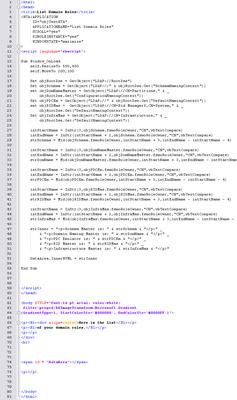
OK, I did it as a graphic. This works ok I guess. We will have to see how it goes from here. Now this will create a HTA window and then put in the appropriate information. It is pretty cool. Hmmmm, now I just need to figure out how to put in a file that you could download for a sample to run. In the meantime you will just have to hand type in everything (well I had to type it all in so .....).
Well anyway, what this program does is pretty simple. It will just let you know what servers your 5 FSMOs are on (you know like PDC Emulator). This way you do not have to open up multiple cryptic GUI utilities and remember where they list them at. Here is the program listing.

OK, I did it as a graphic. This works ok I guess. We will have to see how it goes from here. Now this will create a HTA window and then put in the appropriate information. It is pretty cool. Hmmmm, now I just need to figure out how to put in a file that you could download for a sample to run. In the meantime you will just have to hand type in everything (well I had to type it all in so .....).
Monday, August 22, 2005
Novell name resolution setups
Well, I am actually going to knock something about Novell (OK, well I ding on everyone at some time). Where I work currently we have Novell NDS with multiple trees. NetWare 5.x and 6.x in a pure (well we are trying) IP environment. I have been here about 6 months so far. When I got here I found out that it was hard to get from tree to tree (amongst other things).
Well I started to look closer at the way that my workstation connects to the system. I had not spent much time recently with Novell at the higher end so had some additional learning to do to catch up. Well that is where the problem lies. If you are trying to discover the answer to a bug in the system Novell has a fairly large number of resources in the knowledge base. But if you are trying to find a good white paper or manual on the setup of things like SLP or DNS with Novell, good luck. What little is out there is very sparce. It is like putting a puzzle together with the pieces on different tables in the room.
The biggest thing I have found is that it is most important to have DNS setup correctly! You need to have DNS records for all the servers. You also need DNS records for the names of the trees that you have. These DNS records need to point to servers in the tree. I have setup our system so that the records for the treenames point to servers with replicas on them. You will want two or three DNS records for each tree pointing to multiple servers so that there is load balancing and fault tolerance. I am not sure if I got it the best but it is working MUCH better. I can now login to different trees simply by putting the tree name in the login screen. In the past I had to usually put in the IP address of one of the servers in the tree. The lookup and login is also much much faster too.
SLP is a totally different story. I think I am going to have to look at documentation in OpenSLP to try to really learn what is going on with SLP. I have made some adjustments to our system and it seems to be better. Initially we had SLP DA servers for each tree, so we could not get a good list of services available on the network. Even within a couple of trees we had multiple DA servers and different servers registered on different trees. Talk about messed up. Well we decided to go with two SLP DA servers and point all the other servers to those two servers. Low and behold we are now getting a complete list of servers. Works much better. I have the DA servers on NetWare 6 servers. I used the default scope. I should probably have setup a named scope and might have to change that.
Well I started to look closer at the way that my workstation connects to the system. I had not spent much time recently with Novell at the higher end so had some additional learning to do to catch up. Well that is where the problem lies. If you are trying to discover the answer to a bug in the system Novell has a fairly large number of resources in the knowledge base. But if you are trying to find a good white paper or manual on the setup of things like SLP or DNS with Novell, good luck. What little is out there is very sparce. It is like putting a puzzle together with the pieces on different tables in the room.
The biggest thing I have found is that it is most important to have DNS setup correctly! You need to have DNS records for all the servers. You also need DNS records for the names of the trees that you have. These DNS records need to point to servers in the tree. I have setup our system so that the records for the treenames point to servers with replicas on them. You will want two or three DNS records for each tree pointing to multiple servers so that there is load balancing and fault tolerance. I am not sure if I got it the best but it is working MUCH better. I can now login to different trees simply by putting the tree name in the login screen. In the past I had to usually put in the IP address of one of the servers in the tree. The lookup and login is also much much faster too.
SLP is a totally different story. I think I am going to have to look at documentation in OpenSLP to try to really learn what is going on with SLP. I have made some adjustments to our system and it seems to be better. Initially we had SLP DA servers for each tree, so we could not get a good list of services available on the network. Even within a couple of trees we had multiple DA servers and different servers registered on different trees. Talk about messed up. Well we decided to go with two SLP DA servers and point all the other servers to those two servers. Low and behold we are now getting a complete list of servers. Works much better. I have the DA servers on NetWare 6 servers. I used the default scope. I should probably have setup a named scope and might have to change that.
Thursday, August 18, 2005
Hmmm that worm sucks
Well the new worm that was reported is a nasty one. ZoTob, what kind of name is that for a worm?!?! We had to do some serious patching at work because one of the other parts of the company got hit hard. We got patches in fast enough that we only had a couple of machines that got hit. The big moral of this story is make sure to update any Windows computers right away!!!
On another note, I wrote a script for Active Directory that will go out and scan all the computers (well we were scanning servers) and pull the OS version and Service Pack version on the computer. I need to figure out how to post files on my blog and then I might start putting some of these up there.
While I am on security, if you have wireless in your house or business, make sure it is secure. At the very least you need to turn on WEP. The 64 bit key is a start but if your systems will support a 128 bit key use it. Also, this is a hexadecimal number. What that means is that the letters A through F are considered numbers too. This allows "numbers" like deadbed or deadbead. You can also mix in numbers that look like letters to form other words, like badb0d if you use a zero for the o... or b1d using a 1 for the i to get it to look like bid.. how about b100d... this way you can make a key that is a bit easier to remember. You need to put the key in both the wireless router/access point, and the workstations that are attaching.
If you are in a more populous urban area (out in the country there just are not that many hackers - we have more of a life) you can also restrict the wireless access based on MAC address. This is a hardware address that is set on each network card. To find the MAC address on a Windows 2000 or XP computer, open up a command prompt and type ipconfig /all then look for the wireless adapter. There will be an entry for Physical Address. This is the address (another one of those hex numbers) that you need. Just put it in the wireless router in the MAC address list and then you will be able to get through and those that are not on the list won't.
On another note, I wrote a script for Active Directory that will go out and scan all the computers (well we were scanning servers) and pull the OS version and Service Pack version on the computer. I need to figure out how to post files on my blog and then I might start putting some of these up there.
While I am on security, if you have wireless in your house or business, make sure it is secure. At the very least you need to turn on WEP. The 64 bit key is a start but if your systems will support a 128 bit key use it. Also, this is a hexadecimal number. What that means is that the letters A through F are considered numbers too. This allows "numbers" like deadbed or deadbead. You can also mix in numbers that look like letters to form other words, like badb0d if you use a zero for the o... or b1d using a 1 for the i to get it to look like bid.. how about b100d... this way you can make a key that is a bit easier to remember. You need to put the key in both the wireless router/access point, and the workstations that are attaching.
If you are in a more populous urban area (out in the country there just are not that many hackers - we have more of a life) you can also restrict the wireless access based on MAC address. This is a hardware address that is set on each network card. To find the MAC address on a Windows 2000 or XP computer, open up a command prompt and type ipconfig /all then look for the wireless adapter. There will be an entry for Physical Address. This is the address (another one of those hex numbers) that you need. Just put it in the wireless router in the MAC address list and then you will be able to get through and those that are not on the list won't.
Tuesday, August 02, 2005
The first rant
OK, well this is just the start of this blog. This blog is going to be strictly my rants, raves, and general ramblings about anything tech or geek. Most of it will be revolving around computer networking technology since I am a computer network engineer, but you will also see things like the iPod discussed (no I don't have one yet, but if someone wants to send me one I won't say no!).
The biggest things that I am doing currently are, VBScripting for network administration, and getting Novell eDirectory running on Microsoft Windows and then migrating Netware trees and DirXML over to Windows. I will try to put some pretty good stuff on VBScripting on here so that you can learn what I am learning. Well, OK I will do the same thing for eDirectory since there is like a huge void of documentation for most of that.
Well, one of my biggest complaints with Novell (and I have been a CNE since 1991) is the serious lack of documentation on much of their stuff. It has gotten really bad recently. I was out of the Novell loop for several years and now, trying to get back up to speed, I am getting really frustrated figuring out everything they changed.
VBScript is needed to administer Windows!
Yes, if you really want to be a power administrator you need to learn to script! I have been able to do so much with VBScript in administering the system. How about creating 100 new groups on the system in 10 seconds? That is cool. I did a script where I had a list of groups that I had pulled out of Novell and was able to pump them into the new system in 10 seconds. OK, it took me like 15 minutes to write and test the script, but this is one of the first scripts I did.
One that I did recently that was really cool was a script that pulled a list of all the groups and then pull the list of members in the group and, in a new worksheet for each group, listed the membership in an Excel spreadsheet. We needed it for auditing some rights. I wrote the script to look for the 22 groups that we needed the list from and then was able to send the spreadsheet to the appropriate people. I also found four groups that were created but nobody was ever added to the members list. Delete group!
eDirectory tools for Microsoft are cool
One thing on eDirectory on Microsoft, the maintenance tools are like really cool. Much better than on the NetWare server. If you hate GUI interfaces you will not agree but I really liked them. It did take a while to find where they were. You actually have to go to the Control Panel on the server and then there is a control panel for Novel eDirectory. Odd place to put it but no ones perfect....
Well, I will try to post pretty regularly....
The biggest things that I am doing currently are, VBScripting for network administration, and getting Novell eDirectory running on Microsoft Windows and then migrating Netware trees and DirXML over to Windows. I will try to put some pretty good stuff on VBScripting on here so that you can learn what I am learning. Well, OK I will do the same thing for eDirectory since there is like a huge void of documentation for most of that.
Well, one of my biggest complaints with Novell (and I have been a CNE since 1991) is the serious lack of documentation on much of their stuff. It has gotten really bad recently. I was out of the Novell loop for several years and now, trying to get back up to speed, I am getting really frustrated figuring out everything they changed.
VBScript is needed to administer Windows!
Yes, if you really want to be a power administrator you need to learn to script! I have been able to do so much with VBScript in administering the system. How about creating 100 new groups on the system in 10 seconds? That is cool. I did a script where I had a list of groups that I had pulled out of Novell and was able to pump them into the new system in 10 seconds. OK, it took me like 15 minutes to write and test the script, but this is one of the first scripts I did.
One that I did recently that was really cool was a script that pulled a list of all the groups and then pull the list of members in the group and, in a new worksheet for each group, listed the membership in an Excel spreadsheet. We needed it for auditing some rights. I wrote the script to look for the 22 groups that we needed the list from and then was able to send the spreadsheet to the appropriate people. I also found four groups that were created but nobody was ever added to the members list. Delete group!
eDirectory tools for Microsoft are cool
One thing on eDirectory on Microsoft, the maintenance tools are like really cool. Much better than on the NetWare server. If you hate GUI interfaces you will not agree but I really liked them. It did take a while to find where they were. You actually have to go to the Control Panel on the server and then there is a control panel for Novel eDirectory. Odd place to put it but no ones perfect....
Well, I will try to post pretty regularly....
Subscribe to:
Posts (Atom)